Forest but Low Quality for Gorilla Tag — Download & Install Guide
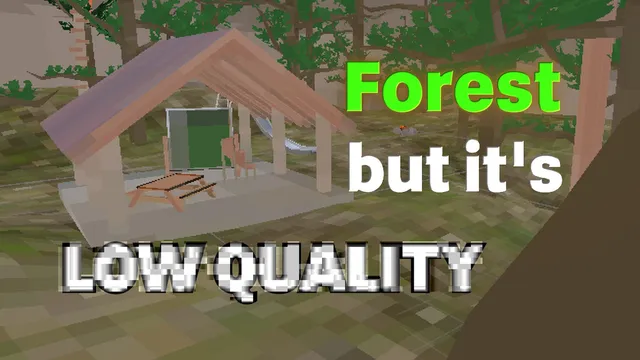
What Is Forest but Low Quality?
The Forest but Low Quality is a custom visual cosmetic modification for Gorilla Tag. Visual customization is a core part of the GTAG experience. While the official shop requires Shiny Rocks to purchase items, this cosmetic mod allows you to wear custom skins, hats, badges, or materials completely for free.
Whether you want to apply a glowing metallic pattern to your gorilla or wear a unique 3D model, Forest but Low Quality introduces high-fidelity visual assets. It loads the items client-side, meaning they render locally in real-time, giving your monke a highly customized look.
What Does Forest but Low Quality Add to Gorilla Tag?
- Unique Character Skin Textures: Wear custom textures like chrome, neon glows, camouflages, or animations.
- Custom 3D Accessory Models: Stand out with hats and badges designed by the community.
- Client-Side Toggle options: Select your active cosmetics directly from your computer terminal.
- Low Performance Impact: Optimized textures that consume minimal memory while playing.
Is Forest but Low Quality Safe to Use?
Visual cosmetic mods like Forest but Low Quality are client-side, meaning other players can only see them if they also have the same cosmetic loader installed. Because they do not edit character speed, reach, or physics, they have a lower ban risk compared to gameplay modifiers. However, it is still recommended to play in private custom rooms to ensure complete compliance.
How to Install Forest but Low Quality on Gorilla Tag
To cater to all setups, we have provided installation steps for both Steam PC VR configurations and standalone Meta Quest headsets.
On PC (Steam / VR Link)
- Ensure you have Gorilla Cosmetics installed in your BepInEx plugins folder.
- Download the cosmetic files (
.hator.material) using the download button below. - Open your plugins folder:
BepInEx\plugins\GorillaCosmetics\. - Place
.hatfiles in theHatsfolder and.materialfiles in theMaterialsfolder. - Launch Gorilla Tag, scroll to the Gorilla Cosmetics menu on the terminal, and select your item.
On Meta Quest (Standalone)
- Patch your Meta Quest using QuestPatcher on your PC.
- Connect your headset to the PC via USB and open QuestPatcher.
- Under the “Cosmetics” tab, locate the “Hats” or “Materials” upload panels.
- Drag and drop your downloaded files directly into the respective panels to sync.
- Disconnect your headset, launch Gorilla Tag standalone, and manage your cosmetics via the terminal.
Compatibility
Forest but Low Quality is regularly updated to maintain compatibility with the latest Gorilla Tag patches. Always download files from verified official sources.
Works on:
- Meta Quest 2 / Quest 3 (Standalone via QuestPatcher)
- Steam VR (Valve Index, HTC Vive, Oculus Link)
Frequently Asked Questions
Can other players see my custom cosmetics in public lobbies?
Why isn't the custom material loading?
How do I remove the cosmetic and return to default?
Download Forest but Low Quality
[Download button is rendered by the Astro component from the downloadUrl frontmatter field]
Last updated: March 2026
Ready to Download?
Click below to download this mod. Links point to the developer's official release (mod.io, GitHub) where available, or to an unmodified mirror of the original file when the official link is gone.
Recommended Modding Guides
Step-by-step tutorials to help you safely install, configure, and troubleshoot Gorilla Tag mods.
You Might Also Like
Comic Kev Badge for Gorilla Tag — Download & Install Guide
Download Comic Kev Badge for Gorilla Tag for free. Read our step-by-step setup guide and access direct download links for cosmetics.
FOV Changer Mod for Gorilla Tag — Download & Install Guide
Download FOV Changer Mod for Gorilla Tag for free. Read our step-by-step setup guide and access direct download links for cosmetics.
❷PotTheMan's GorillaCon❷ for Gorilla Tag — Download & Install Guide
Download ❷PotTheMan's GorillaCon❷ for Gorilla Tag for free. Read our step-by-step setup guide and access direct download links for cosmetics.