EyeRock Mod Menu for Gorilla Tag — Download & Install Guide
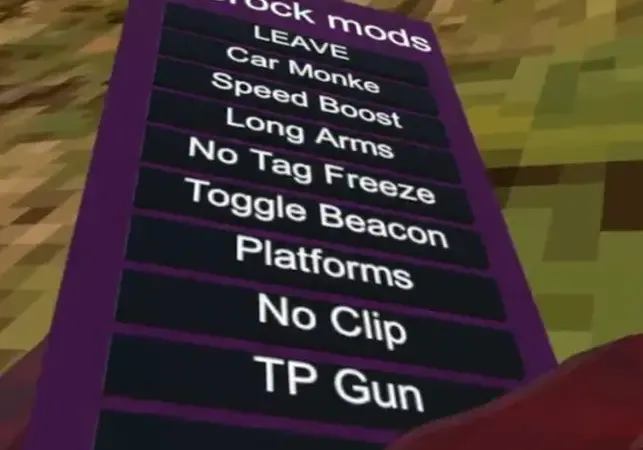
What Is EyeRock Mod Menu?
EyeRock Mod Menu is a dedicated client-side modification for Gorilla Tag designed to provide players with quick, intuitive control over movement physics, camera angles, and visual settings in virtual reality. Built to integrate seamlessly with the BepInEx framework and Utilla room manager, it allows players to experiment with enhanced VR locomotion while respecting community fair-play standards.
Whether you are staging cinematic video recordings for TikTok and YouTube, exploring elevated map geometry, or hosting private parkour sessions with friends, EyeRock Mod Menu offers a versatile toolkit directly accessible through your VR motion controllers.
Key Features & Capabilities
- Responsive VR Interface: Designed specifically for virtual reality headsets, allowing rapid navigation using controller joysticks and pointer beams.
- Controlled Flight & Glide: Smooth velocity-based movement tools enabling you to freely navigate maps and test boundary lines in custom lobbies.
- Sticky Platforms: Instant platform generation beneath your hands upon pressing controller grips, letting you climb into the open sky or rest mid-air.
- Visual Customization: Toggleable display settings, FOV adjustments, and third-person spectator cameras for recording gameplay.
- Utilla Anti-Ban Protection: Automatically respects room flags to ensure you remain separated from vanilla public matchmaking queues.
VR Controls & How to Use
- Open Menu: Hold your primary action button (usually X on the left controller or A on the right controller) or glance at your virtual wrist.
- Navigate Pages: Use the thumbstick left/right or point your hand beam at on-screen category tabs (Movement, Visuals, World, Fun).
- Toggle Options: Click your trigger finger while pointing at any button to enable or disable features.
- Spawn Platforms: Squeeze either controller grip button to spawn a solid platform directly beneath that hand.
Safety Guidelines & Lobby Etiquette
Mod menus alter the core physics of Gorilla Tag and must be handled responsibly:
- Private & Modded Rooms Only: Always play in rooms created with custom room codes or modded gamemodes. Never take movement modifications into public vanilla lobbies.
- Respect Other Monkes: Do not use reach or speed advantages to grief casual players.
- Verify Sources: Only install verified
.dllfiles from trusted community modding hubs to avoid corrupted files.
Installation Instructions (PCVR / Steam)
- Make sure BepInEx and Utilla are installed in your Gorilla Tag PC directory.
- Download the
EyeRock Mod Menufile using the download button below. - Open your game’s plugins folder:
Gorilla Tag\BepInEx\plugins\ - Place the downloaded
.dllfile directly into thepluginsdirectory. - Launch Gorilla Tag via Steam VR, connect to a private room, and enjoy testing your new setup!
Frequently Asked Questions
Does EyeRock Mod Menu work on standalone Meta Quest without a PC?
Why isn't the menu opening in-game?
Ready to Download?
Click below to download this mod. Links point to the developer's official release (mod.io, GitHub) where available, or to an unmodified mirror of the original file when the official link is gone.
Recommended Modding Guides
Step-by-step tutorials to help you safely install, configure, and troubleshoot Gorilla Tag mods.
You Might Also Like
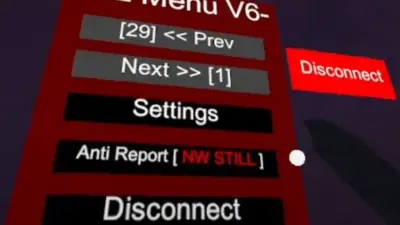
AZ Menu V6.5 for Gorilla Tag — Download & Install Guide
Feature-complete release of AZ Menu offering clean button triggers, customizable UI themes, and fast sticky platform controls.
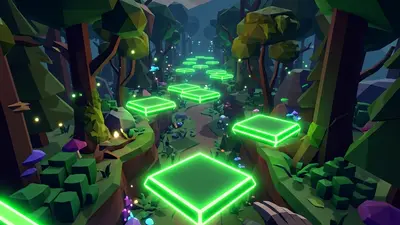
The Bark Mod Menu for Gorilla Tag — Features & Safe Setup Guide
Download The Bark Mod Menu for Gorilla Tag. Master VR wrist controls, flight mechanics, custom platforms, and essential lobby safety guidelines.
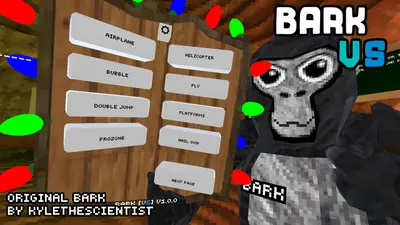
Bark V Stump Mod for Gorilla Tag — Download & Install Guide
Brings physical Bark menu stations directly into the main treehouse stump for interactive physical toggles inside VR.