Gorilla Cosmetics for Gorilla Tag — Custom Hats, Materials & Badges
What Is Gorilla Cosmetics?
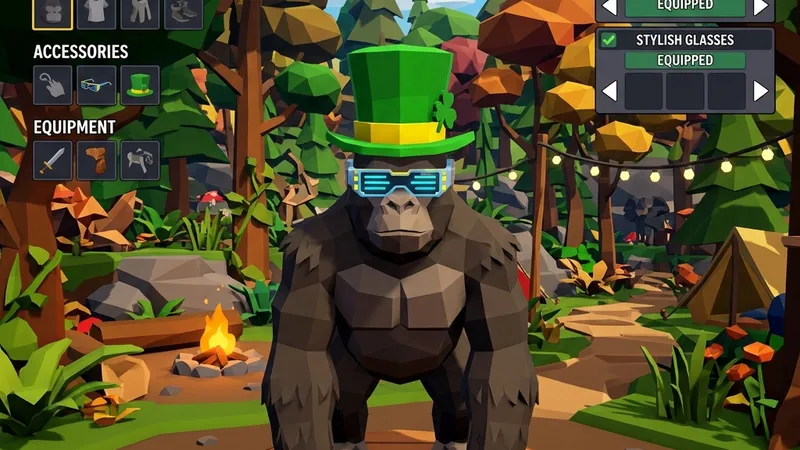
Gorilla Cosmetics is the undisputed king of personalization mods in Gorilla Tag. While the vanilla game features an in-game City mall with purchasable Shiny Rocks cosmetics, Gorilla Cosmetics unlocks infinite community-created customization. From glowing animated galaxy fur to top hats, sunglasses, and custom badges, this mod lets you express your personality without spending real money.
The mod seamlessly adds a dedicated cosmetic wardrobe station inside the treehouse. You can stand in front of the mirror, view your custom avatar in real-time, and mix and match community accessories with a single tap of your finger.
Key Features
- Custom Materials & Skins: Wear animated skins, camouflage patterns, neon gradients, and transparent textures on your gorilla character.
- Extensive Hat Collection: Equip top hats, crowns, wizard caps, helmets, and seasonal headgear created by 3D artists.
- Interactive Wardrobe Mirror: Real-time visual feedback lets you preview exactly how your avatar looks before stepping out into lobbies.
- Modular File Architecture: Simply drop new
.hator.materialasset bundles into your plugins folder to instantly add new clothing items.
How to Install Gorilla Cosmetics & Add Skins
- Ensure BepInEx and Utilla are installed.
- Download
GorillaCosmetics.zipfrom the link below. - Extract the folder into
Gorilla Tag\BepInEx\plugins\. - To add custom community cosmetics, drop
.hatfiles into:BepInEx\plugins\GorillaCosmetics\Hats\and.materialskin files into:BepInEx\plugins\GorillaCosmetics\Materials\. - Launch Gorilla Tag and visit the wardrobe station beside the mirror in the treehouse!
Frequently Asked Questions
Can other players see my custom cosmetics?
Is Gorilla Cosmetics safe from bans?
Ready to Download?
Click below to download this mod. Links point to the developer's official release (mod.io, GitHub) where available, or to an unmodified mirror of the original file when the official link is gone.
Recommended Modding Guides
Step-by-step tutorials to help you safely install, configure, and troubleshoot Gorilla Tag mods.
You Might Also Like
Comic Kev Badge for Gorilla Tag — Download & Install Guide
Download Comic Kev Badge for Gorilla Tag for free. Read our step-by-step setup guide and access direct download links for cosmetics.
Forest but Low Quality for Gorilla Tag — Download & Install Guide
Download Forest but Low Quality for Gorilla Tag for free. Read our step-by-step setup guide and access direct download links for cosmetics.
FOV Changer Mod for Gorilla Tag — Download & Install Guide
Download FOV Changer Mod for Gorilla Tag for free. Read our step-by-step setup guide and access direct download links for cosmetics.