Computer Interface v2.0.1 for Gorilla Tag — Terminal Upgrade Guide
What Is Computer Interface?
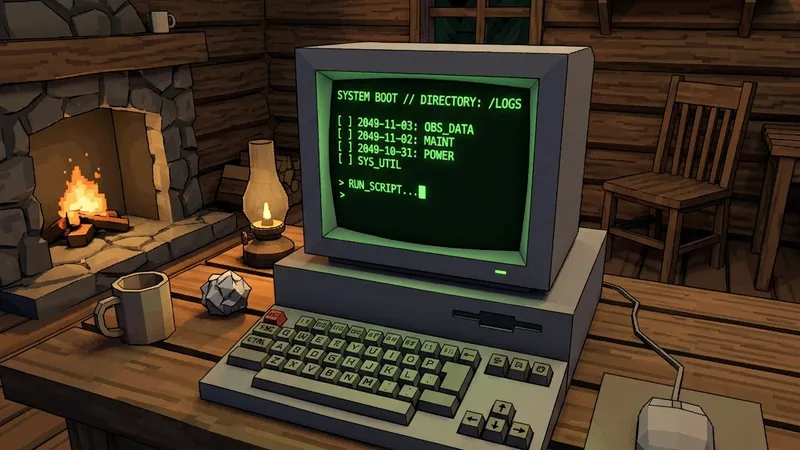
Computer Interface is a massive quality-of-life upgrade for Gorilla Tag’s treehouse computer terminal. The vanilla computer screen is limited to basic alphanumeric keys and rudimentary text displays. Computer Interface completely re-engineers this terminal into an interactive, multi-tabbed operating dashboard right inside virtual reality.
With Computer Interface installed, other mods can register their own dedicated setting screens directly on the treehouse computer. Instead of fumbling through external desktop windows or navigating awkward wrist menus, you can simply walk up to the terminal, use the arrow keys to browse installed mods, and toggle options using the physical keyboard keys.
Features of Computer Interface
- Multi-Page App Navigation: Browse between Room settings, Color customizations, Installed Mods, and System Diagnostics using a clean tabbed sidebar.
- Custom Background Wallpapers: Personalize your treehouse terminal by loading custom
.pngwallpapers and RGB color themes. - Physical Keyboard Feedback: Fully compatible with Gorilla Tag’s physics-driven finger buttons, offering responsive on-screen typing.
- Developer Screen API: Allows creators of mods like GorillaCosmetics, TimeTab, and MonkeMapLoader to build dedicated configuration screens without writing custom UI code.
How to Install Computer Interface
- Install BepInEx and Utilla in your game directory.
- Download the
ComputerInterface.ziparchive below. - Place
ComputerInterface.dllinto:Gorilla Tag\BepInEx\plugins\ - Boot up Gorilla Tag and walk over to the treehouse computer. The screen will now feature a vibrant new interface with expandable categories!
Frequently Asked Questions
Why is my computer screen completely black?
How do I add a custom wallpaper?
Ready to Download?
Click below to download this mod. Links point to the developer's official release (mod.io, GitHub) where available, or to an unmodified mirror of the original file when the official link is gone.
Recommended Modding Guides
Step-by-step tutorials to help you safely install, configure, and troubleshoot Gorilla Tag mods.
You Might Also Like
BepInEx for Gorilla Tag — Essential PCVR Mod Loader Guide
Download BepInEx 5.4.22 for Gorilla Tag free. The required PCVR mod loader - full install guide, plugins folder setup, and fixes for common errors.
BepInEx Setup & Installation Utility for Gorilla Tag — Download & Guide
Quick-start guide and automated setup archive for installing BepInEx on Steam VR and Oculus PC.
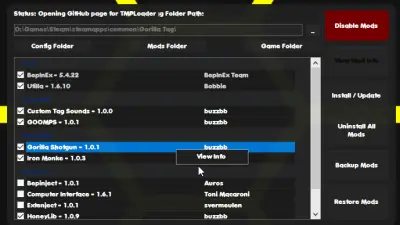
Monke Mod Manager for Gorilla Tag — Automated PC Installer & Setup Guide
Download Monke Mod Manager for Gorilla Tag on PC. The premier 1-click installer for BepInEx, Utilla, Gorilla Cosmetics, and custom map loaders.